How to Add a Wishlist to Your Shopify Store: 4 Methods Compared
Four ways to add a wishlist to a Shopify store: theme code DIY, built in theme features, free wishlist apps, and First Wish, with the differences and limits of each.
By Vellir Technologies · Published 24 April 2026
Bottom line
For most stores, pick an app. DIY theme code is cheap upfront but expensive to maintain; built in theme features are limited; free apps often gate analytics. First Wish handles the full feature set with a free tier and works on Store 1.0 and 2.0 themes.
What “Adding a Wishlist” Actually Means
A wishlist sounds like one feature. It is three or four working together:
- A save button or heart icon on product pages.
- A way to view and manage the saved list.
- An optional shareable URL for that list.
- Optional but valuable: analytics on which products customers save, and a way to email people about saved items.
The four methods below differ on which of these parts they handle and how much install effort they cost.
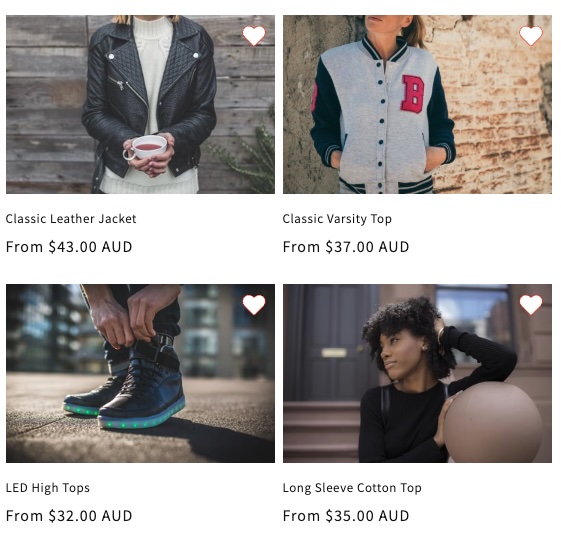
Method 1: Theme Code (DIY)
How it works: edit your theme's Liquid templates and add JavaScript that stores wishlist items in localStorage on the customer's browser.
What you build:
- A heart icon snippet on product pages and product cards.
- A small JavaScript file that reads and writes localStorage.
- A wishlist page (template) that pulls saved items by handle.
What you do not get without more work: sync across devices (localStorage is per browser), analytics, email reminders, or shareable wishlists.
Where it fits: prototypes, side projects, and stores with strong in house developer capability who want full control of the markup. The maintenance load is the main cost. Every theme update is a chance to break the snippet, and every new template needs the snippet added.
Method 2: Built In Theme Features
How it works: a handful of premium Shopify themes (Empire, Impulse, Prestige, Symmetry) ship with a wishlist module included. Turn it on in theme settings, configure the icon position, save.
What you get: a working wishlist with no app install. The depth of features depends on the theme. Most include the icon and a list page; few include analytics or email integration.
What you do not get: shareable wishlists in many cases, granular customisation of the icon position on Store 1.0 themes, or the ability to migrate the saved data if you change theme.
Where it fits: stores already on a premium theme that includes the feature. If your theme has it and the depth is enough for your use case, this is the simplest route. Worth checking whether your theme's feature set actually fits before relying on it.
Method 3: Free Wishlist Apps
How it works: install a wishlist app from the Shopify App Store. Most have a free tier.
What you get: a more polished version of what theme code gives you, plus shareable wishlists, basic analytics, and (on most apps) a guest wishlist option.
What you do not always get on the free tier:
- The ability to remove the app's branding from the wishlist UI.
- Detailed analytics or insights at the product level.
- Email reminders (“an item on your wishlist is back in stock”).
- Support for both Shopify Store 1.0 and 2.0 themes.
Read the limits page before you commit. Migrating between wishlist apps later is awkward, because the saved data lives inside the app and is not always exportable.
Where it fits: low budget stores willing to live with branded UI and limited analytics. A reasonable starting point if you want to validate that customers will use the feature at all.
Method 4: First Wish
How it works: install First Wish on a Shopify store, add the wishlist button or heart icon to your theme using a Liquid snippet, configure colours and position from the app settings.
What you get:
- A customisable wishlist button for product pages.
- A heart icon overlay for product images, configurable in position, size, and colour.
- Shareable wishlists customers can send to friends and family.
- Analytics on which products get saved most often.
- Support for Shopify Store 1.0 and 2.0 themes.
- A free tier to start.
The Liquid snippet pattern means the icon sits exactly where you want it on your product cards, which matters more on Store 1.0 themes where automatic placement is tricky. Walkthroughs for both the button on Store 1.0 themes and the heart icon over product images on Store 2.0 themes are in the First Wish tutorials section.
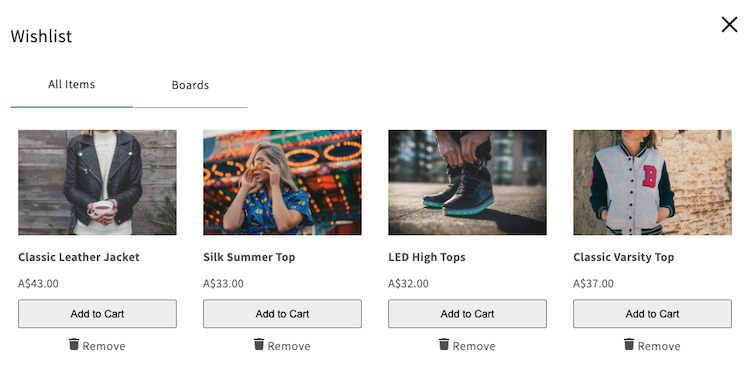
Where it fits: stores that want a polished wishlist with analytics, work on both Store 1.0 and 2.0 themes, and want a free tier to start.
Methods Compared
| Method | Install effort | Sync across devices | Shareable | Analytics | Cost |
|---|---|---|---|---|---|
| Theme code (DIY) | High | No | No | No | Free, plus developer time |
| Built in theme | Low | Sometimes | Sometimes | Limited | Theme licence cost |
| Free wishlist app | Low | Usually | Usually | Limited on free | Free tier with limits |
| First Wish | Low | Yes | Yes | Yes | Free tier to start |
Common Pitfalls
A few things separate a wishlist install that helps from one that gets ignored:
- Burying the icon. If the heart icon is hard to see or appears only in a corner of product cards, customers will not use it. Test on mobile, where most ecommerce traffic lives now.
- No follow up email. A wishlist with no email program is a journal nobody reads. Plan the “back in stock” or “on sale” trigger before you launch.
- No clear path back to the saved list. Make sure customers can find their wishlist after they save an item. A header link, an icon next to the cart, or a popup on save all work.
- Underestimating mobile install. A heart icon on desktop is straightforward. The same icon on a phone screen needs more thought about position and tap target size.
What to Pick
For most stores: install an app rather than build it. The effort to build is low; the effort to maintain is not. App vendors update the wishlist when Shopify changes underneath it. Theme code does not.
If your premium theme already has a wishlist and the depth is enough, use that. If not, a free wishlist app is the cheapest reliable path. If you want analytics, shareable wishlists, and confidence that the app works on both Store 1.0 and 2.0 themes, First Wish offers those with a free tier.
The decision worth taking time on is the install position of the icon, before the choice of vendor. The vendor switch is reversible. The icon position is the thing customers actually see.
Frequently asked questions
- Can I build a wishlist without an app?
- Yes. localStorage and Liquid snippets get you there for guest wishlists. You'll lose sync across devices and need to maintain the code as your theme updates.
- Does my Shopify theme already have a wishlist?
- Some premium themes ship with one (Empire, Impulse, Prestige are common examples). Free themes generally don't.
- Do free wishlist apps have hidden limits?
- Often. Common limits: number of wishlists, branded footer, or analytics being paywalled. Read the limits before going live.
- Does First Wish work on Shopify Store 1.0 themes?
- Yes. Walkthroughs for both Store 1.0 (e.g. Debut) and 2.0 (e.g. Dawn) installs are in the tutorials section.