How to add the add to wishlist button to the product page on a Shopify Store 1.0
Adding the add to wishlist button to the product page on your Shopify Store 1.0 requires adding a snippet of code to the corresponding page. The process is relatively simple if you've made changes to your theme's code before. However feel free to contact us if you need help.
This tutorial shows how to add the icon to Debut theme, which is the default theme for stores 1.0. The exact position where the code needs to be inserted might be different if you're using a different theme.
Step 1 - Navigate to the theme's code editor
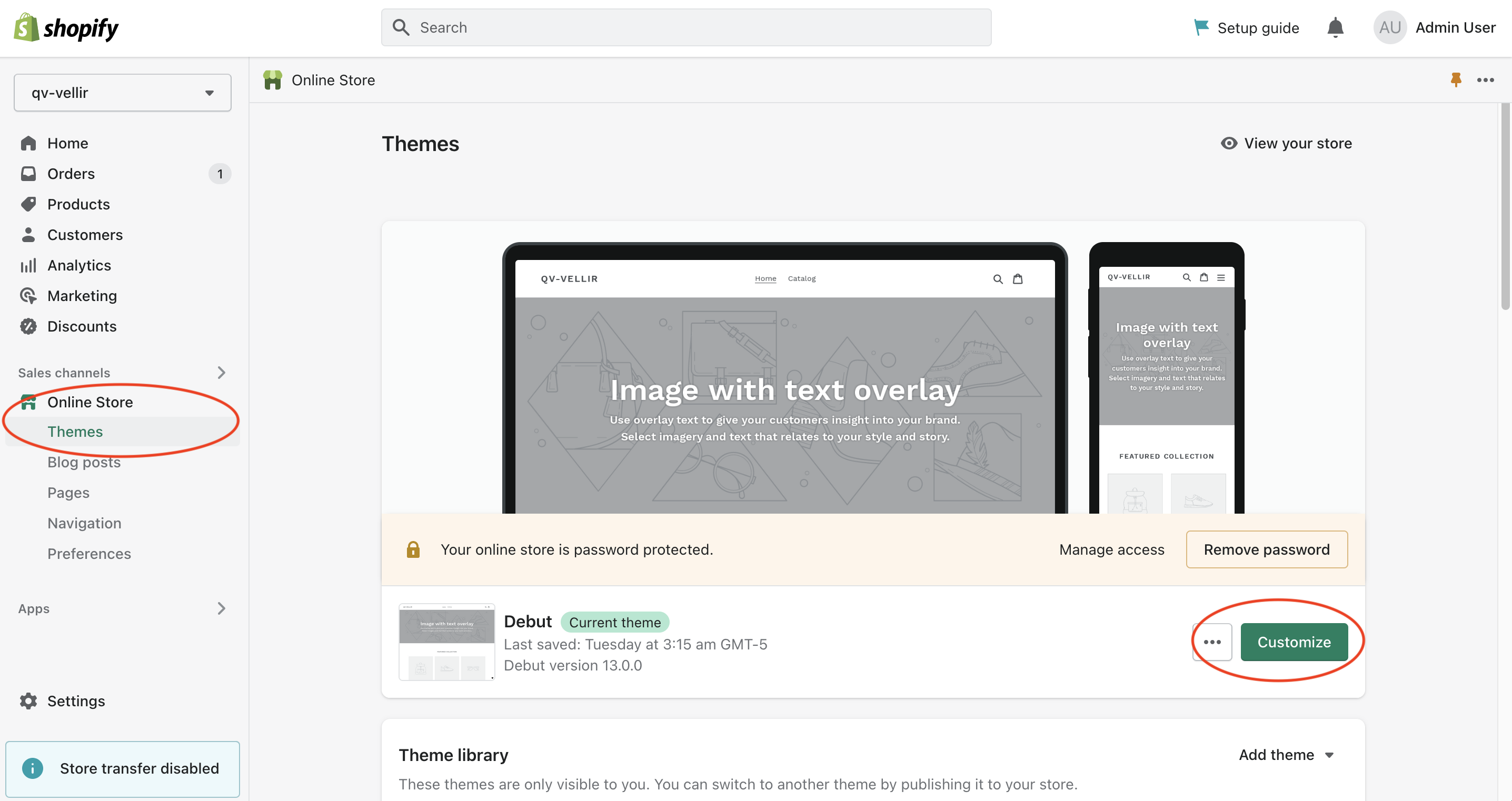
Before making any changes it's recommended to either duplicate the live theme or pick another theme from the library. This way you can minimize the risk of impacting your live store if something goes wrong. From your Shopify's admin page, click on “Online Store” -> “Themes” and click on “...” next to “Customize” and select “Duplicate”. Once you've done that click on “Customize”.
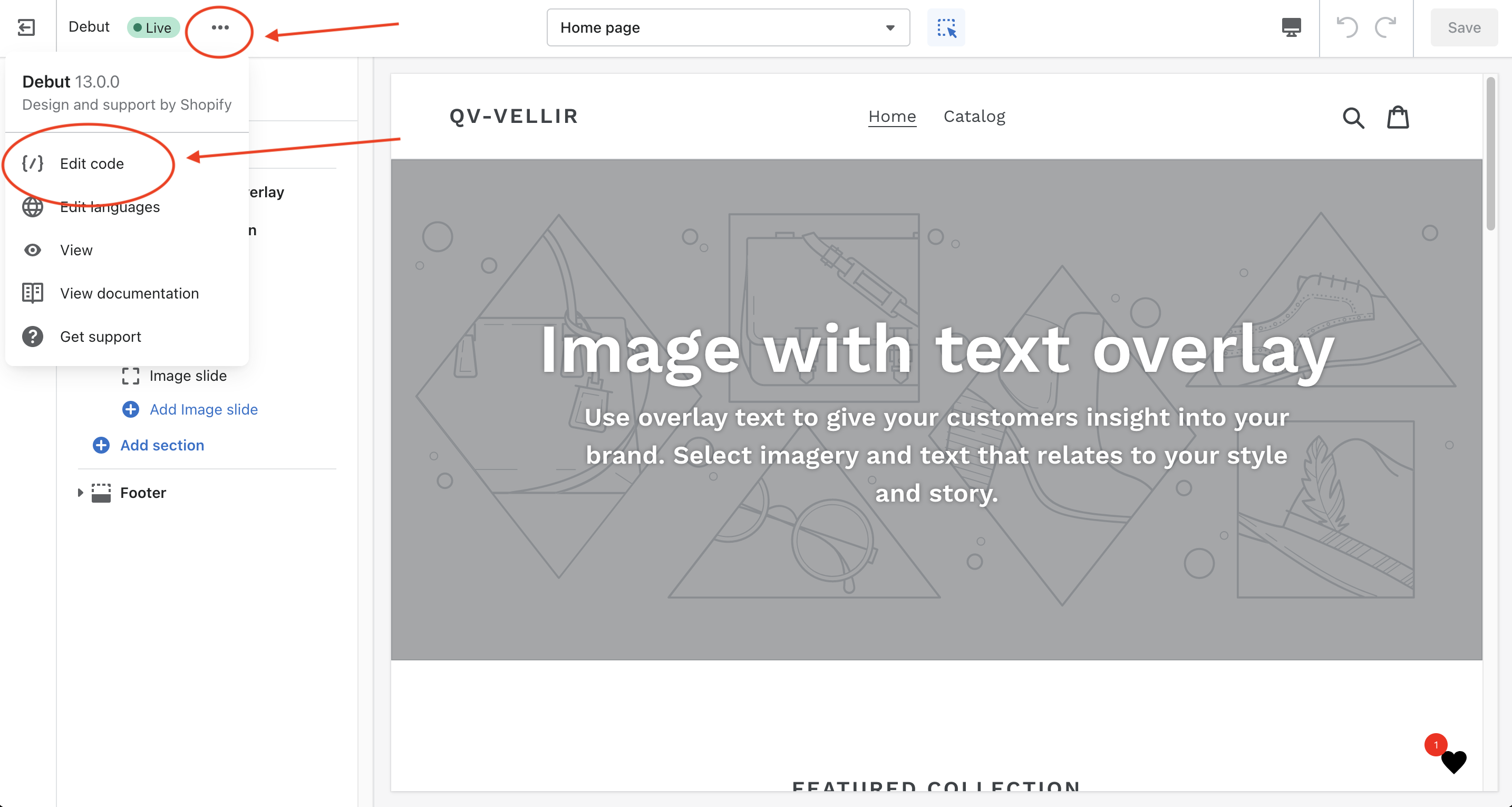
From the theme editor page, click on “...” and select “Edit Code”
Step 2 - Find the product page template
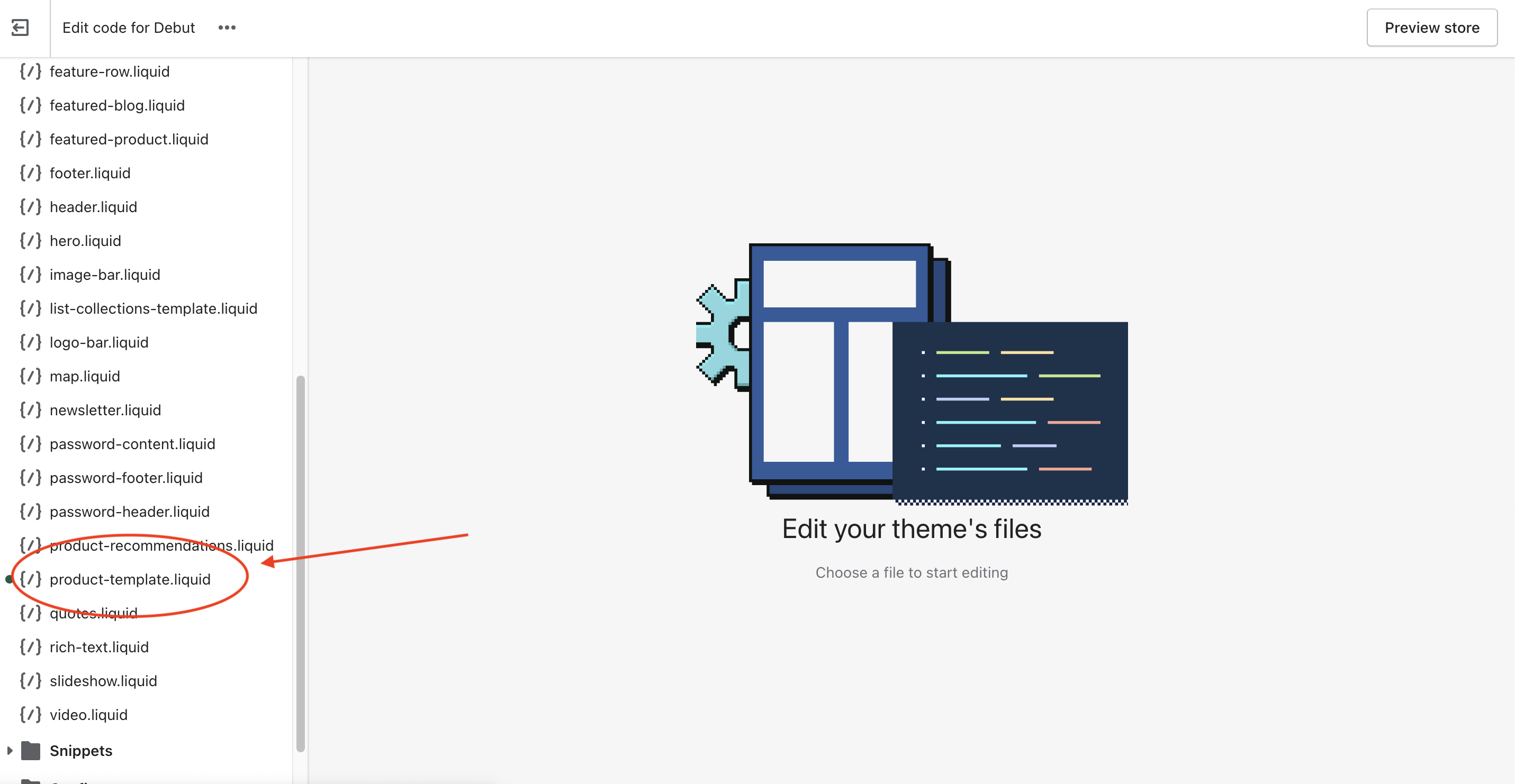
The file responsible for rendering the product page in the Debut theme is called “product-template.liquid” and it can be found in the “Sections” folder. Please keep in mind that if you're using a different theme or even a modified version of Debut the file name might be different. Click on the file name once you find it.
Step 3 - Add code snippet
Add the following snippet of code in the location where you want the button to appear:
{% render 'firstwish-add-button', product %}
In Debut the ideal place to add the snippet is between lines 192-193. This will include the add to wishlist button between the “Add to Cart” and “Buy it Now” buttons. Feel free to add the button to any other location on the page that better fits your preferences.
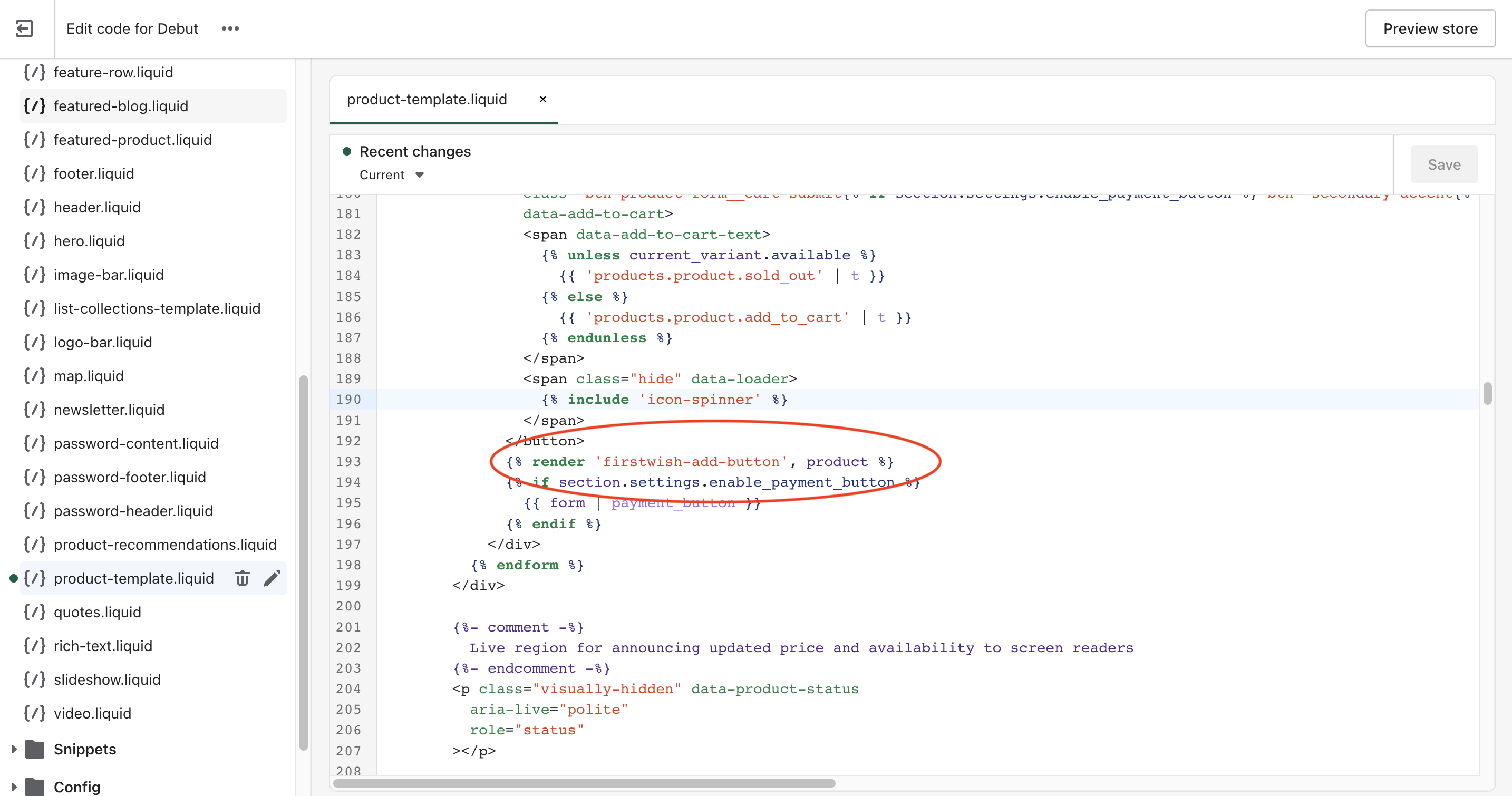
Don't forget to click the “Save” on the top right.
That's it. You can now check your store front and the add to wishlist button will be displayed.
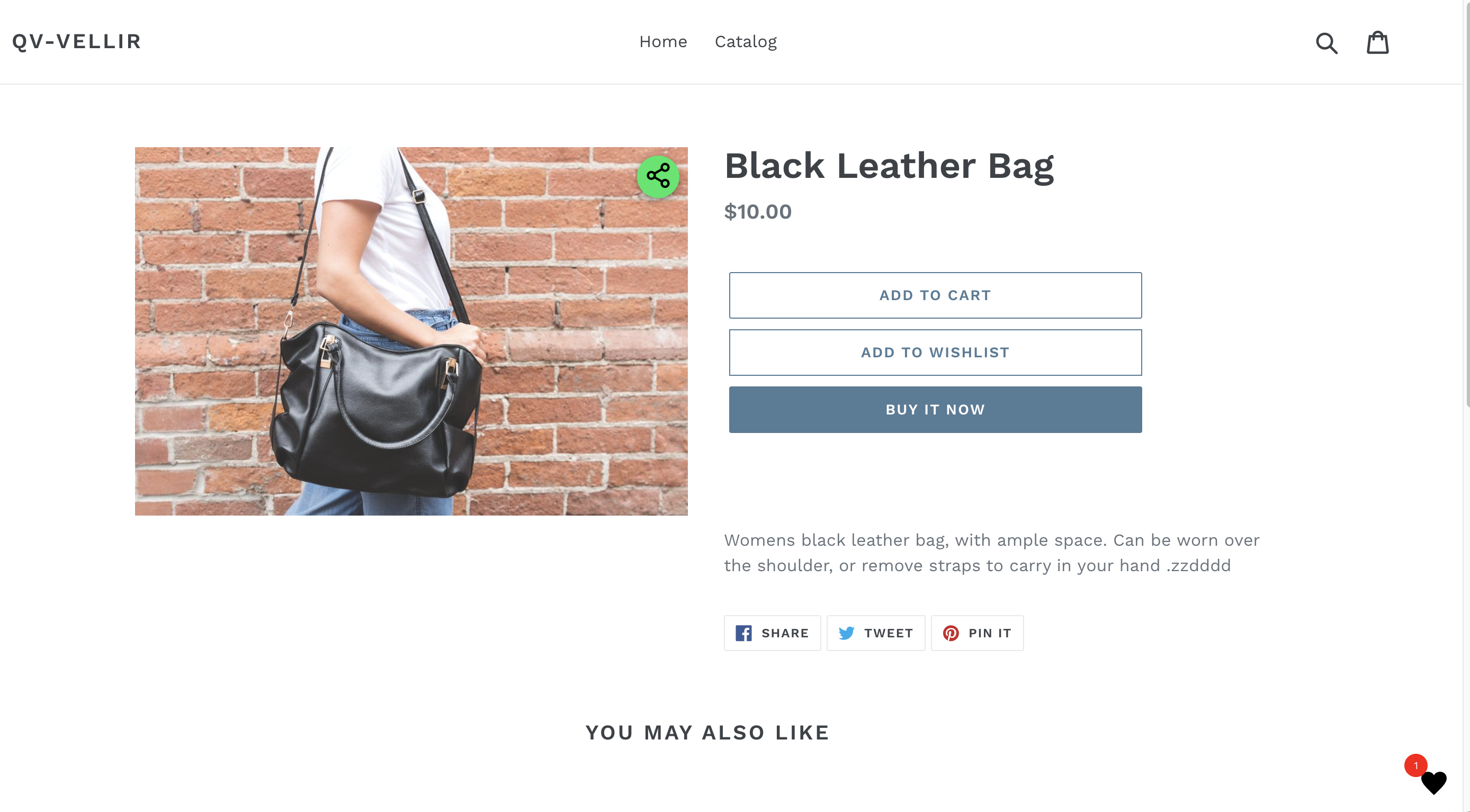
If you wish to change the button's label, from the code editor open the file “firstwish-add-button.liquid” in the “Snippets” folder.
For a quick reference the video below shows the process described in this tutorial.
Please feel free to contact us for any questions or help with your custom theme.